If you've been selling on Instagram, your catalogue is basically already there. Every post is a product photo. Every caption is half a product description. The work is done — it's just sitting on your grid.
So...we've made it easier for you to get a REAL online storefront for your business.
Strawlo now imports straight from your Instagram. Connect your account, tap the posts you want to turn into products.
Why We Built This
A lot of Strawlo merchants started on Instagram before they ever had a proper website. By the time they decide to have a real online store, they've already got 40, 80, sometimes 200+ product shots just sitting on their feed.
Re-uploading all of that photo by photo is genuinely painful. It's also the thing that stops most people from ever finishing their store setup.
Instagram import skips all of that.
Here's How It Works
Step 1 — Connect Your Instagram
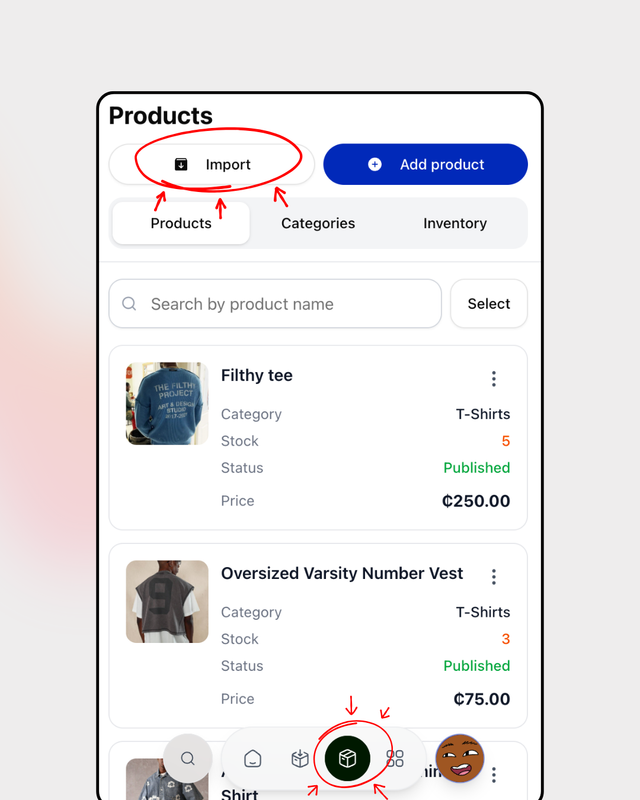
Go to Products → Import products → Instagram and tap Connect Instagram. We open Instagram's official login flow, you approve Strawlo, and you're in.
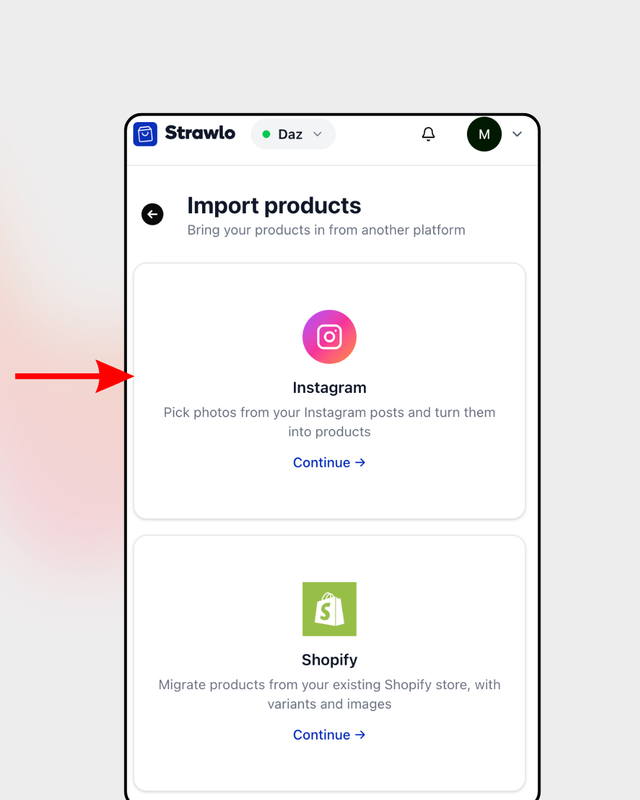
One thing to note: this only works with Business or Creator accounts — not personal ones. If you're still on a personal account, you can switch in under Settings → Account type and tools → Switch to professional account in the Instagram app. Takes about a minute.
Also — Strawlo only gets read access to your posts. We can't post anything, read your DMs, or follow anyone. We just see your photos.
Step 2 — Pick Your Posts
Once connected, your Instagram feed loads in a clean grid right inside Strawlo. Scroll down and more posts load automatically — no extra tapping needed.
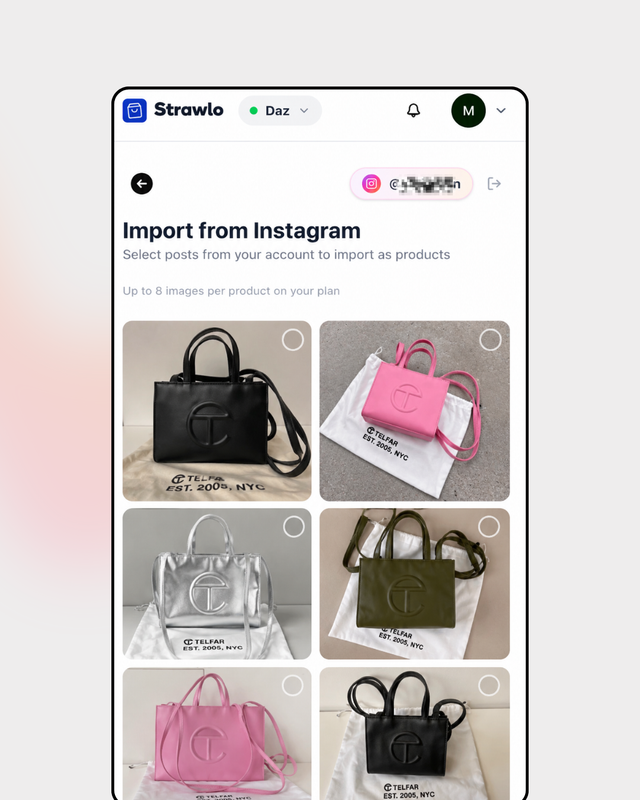
Tap a post to select it. A numbered badge shows up (same feel as selecting photos on your phone). Carousels — posts with multiple images — show a little badge with the photo count. When you've picked what you want, a floating Import button slides up from the bottom.
Step 3 — Fill In the Details, Then Import
Tap Import and each post turns into a product card for you to edit. On mobile it slides up as a bottom sheet so your grid is still visible in the background.
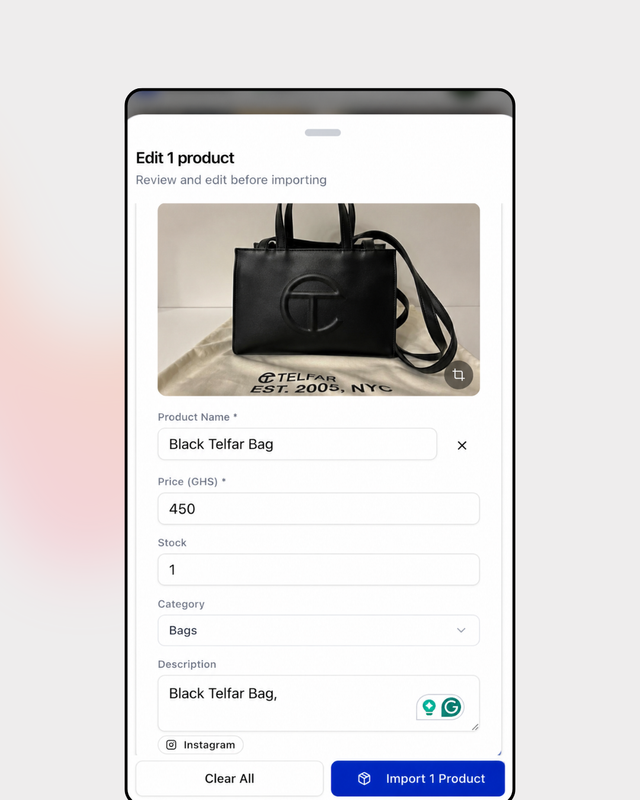
For each product you'll set:
- Name — Instagram doesn't have product names, so this one's on you. Keep it short.
- Price — required. Defaults to your store's currency.
- Stock — starts at 1, bump it up if you have more.
- Category — pick from your existing ones or skip it for now.
- Description — pre-filled with your Instagram caption. Edit it, trim it, or leave it as-is.
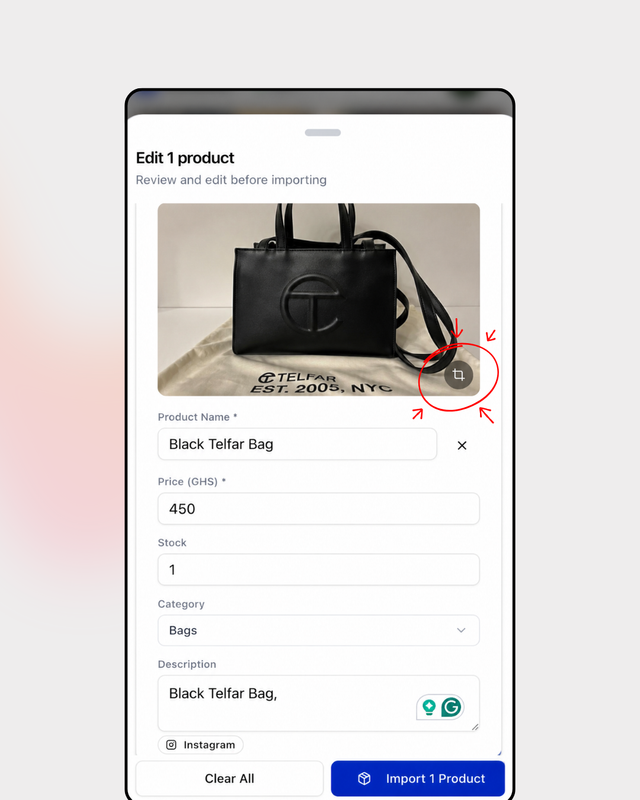
If you want to crop a photo, tap the crop icon and pinch to reframe.
Got a carousel and want a different image as the cover? Tap any thumbnail to make it the primary. Want to reorder the images? Tap Reorder and sort them however you like.
Hit Import when you're happy, and Strawlo uploads the images and creates the products. Done.
What Gets Brought Over
For each post you import, Strawlo grabs:
- The photo — or all photos if it's a carousel
- The caption, as a starting point for your product description
- A link back to the original Instagram post, saved on the product for your reference The name, price, stock, and category are yours to fill in. We can't guess what to call your products or what you're charging.
A Few Things Worth Knowing
Carousels are fully supported. Import a 5-photo post and you get all 5 images on the product (up to your plan's limit). You pick the primary, reorder the rest, crop any of them.
Videos aren't supported yet. Reels and video posts are skipped for now — Instagram import is photos and carousels only. It's on the roadmap.
Image quality is what Instagram gives us. We pull the highest resolution Instagram exposes, which is great for the vast majority of products. If you need the original full-quality file, upload it directly when editing the product.
Disconnect whenever. Tap the log-out icon next to your username and we remove the connection. Everything you've already imported stays on Strawlo — those products are yours.
Who Can Use It
Instagram import is available on Business+ plans. You get unlimited imports and up to 8 images per product.
If you're on the Business plan, the Instagram option will be greyed out — tap it and we'll walk you through the upgrade.
Where to Find It
On web: Products dashboard → Import products → Instagram
On iOS: Products tab → Import products → Instagram
Strawlo Business+ merchants can use Instagram import right now. Open your dashboard, go to Import products, and tap Instagram to get started.
Get weekly business tips
Join 1,000+ entrepreneurs growing their online businesses.
No spam, ever. Unsubscribe anytime.
Related articles

Adding Products Just Got Faster: Snap a Photo, Let AI Fill It In, Done

WhatsApp Broadcast: Message Every Customer You've Ever Sold To