
When someone searches Google for "ladies bags in Accra" or "shea butter Kumasi", is your store showing up? And if it is, which of your products are people finding?
Google Search Console answers those questions. It's a tool from Google that shows you how your store appears in Google Search: what people typed to find you, how many of them clicked, and which of your pages Google has added to its results.
It's made by Google, it's free, and once your store has its own domain it takes about 10 minutes to set up. This guide walks you through it, step by step.
What you need before you start
- Your own domain, like yourstore.com. You can buy one inside Strawlo or connect one you already own. Custom domains are included on the Business and Business+ plans.
- A Google account. Your Gmail works.
- About 10 minutes.
On a yourstore.strawlo.com address? Google can still find your store, because every Strawlo store is listed in our sitemap. But Search Console only lets you verify a domain you own, so you'll need your own domain to see your store's search data.
In this guide we use yourstore.com as an example. Type your own domain wherever you see it.
Step 1: Add your domain in Search Console
Go to search.google.com/search-console and sign in with your Google account. Tap Add property.
Google asks you to pick a property type. Choose Domain, on the left.
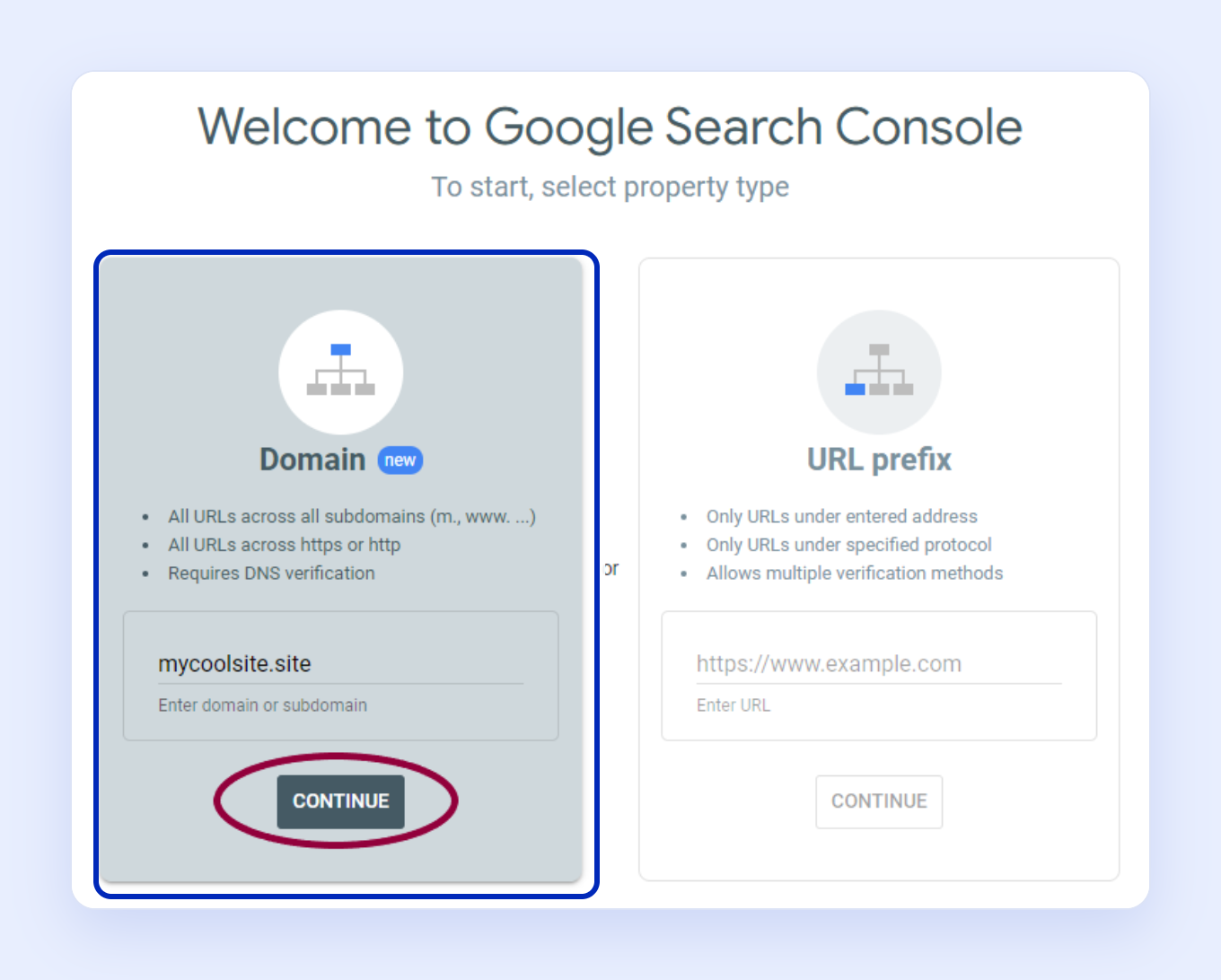
Type your domain without www or https, so just yourstore.com, then tap Continue.
Why Domain and not URL prefix? A Domain property covers every version of your address: yourstore.com, www.yourstore.com, http and https. You set it up once and see all your data in one place.
Step 2: Copy the TXT record Google gives you
Google now shows you a TXT record. It's a line of text starting with google-site-verification=, followed by a code that's unique to you.
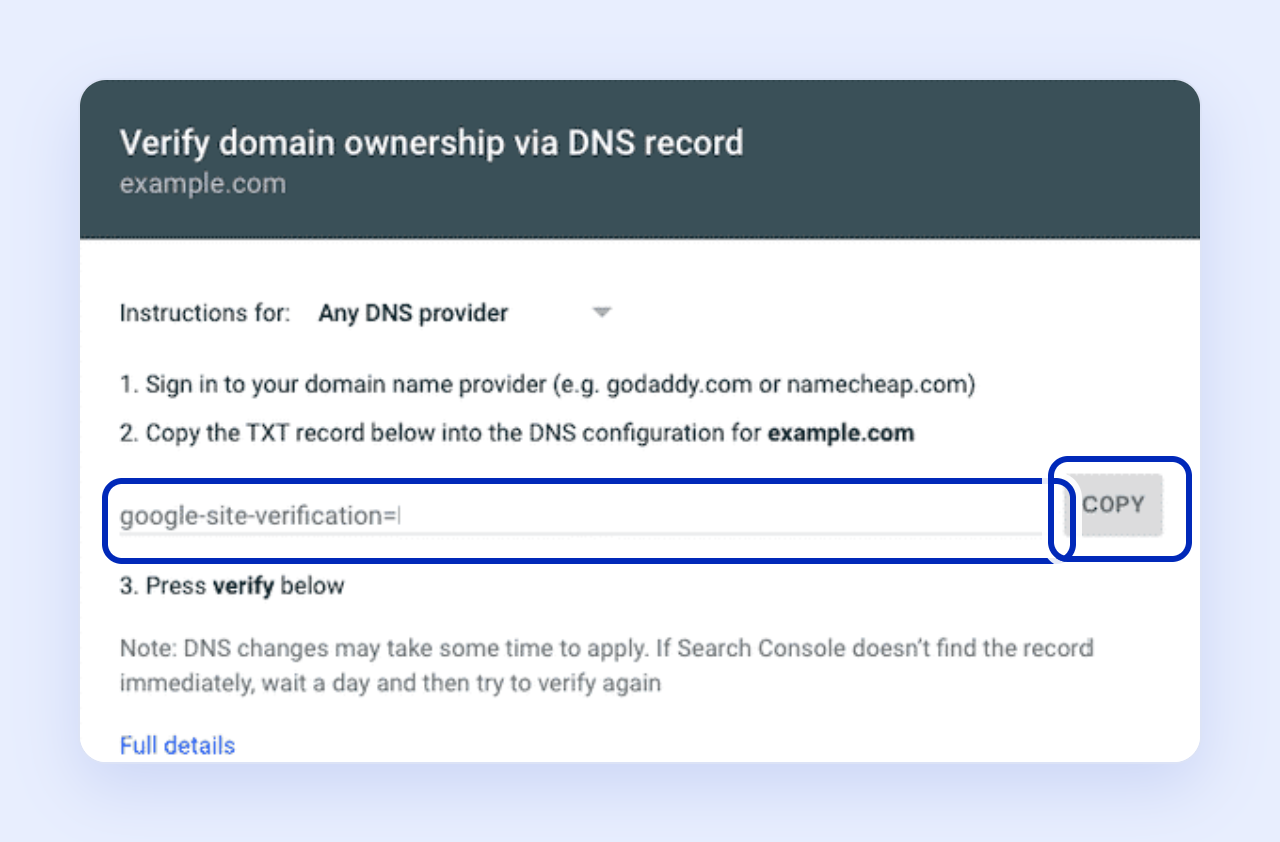
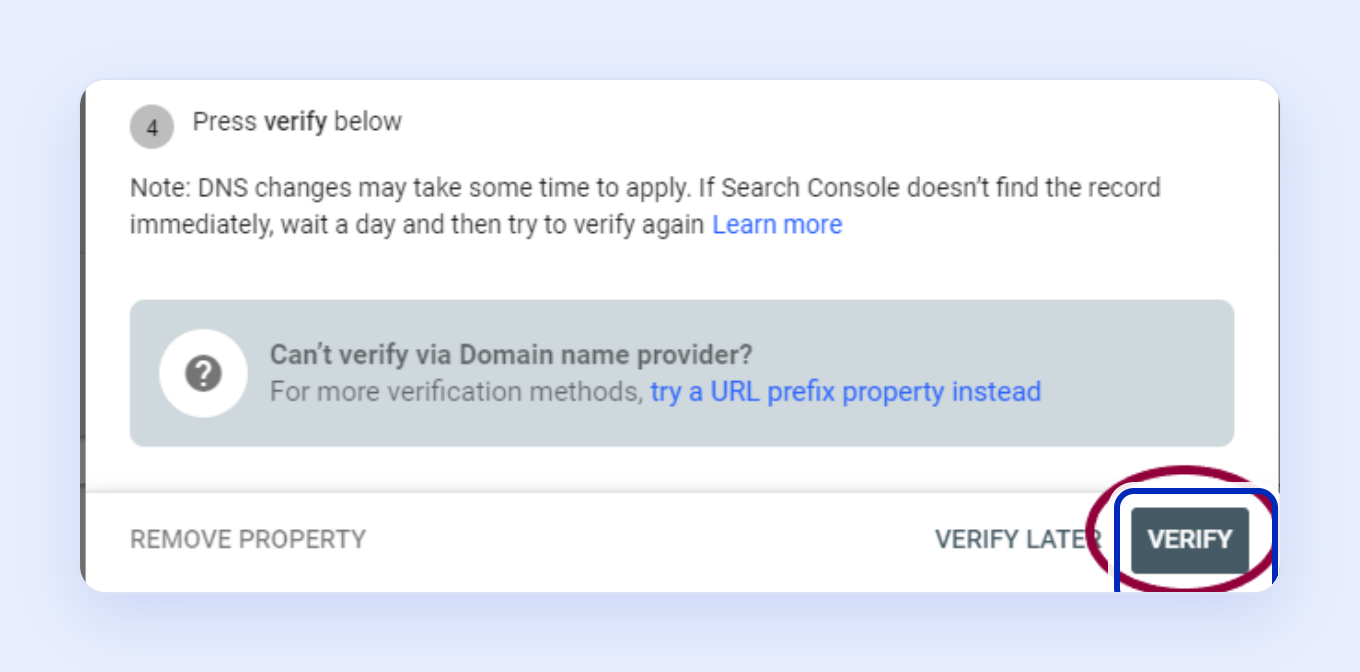
Tap Copy. Don't tap Verify yet. Leave this page open, you'll come back to it in Step 4.
The TXT record is how Google checks that the domain is really yours. You put it in your domain's settings and Google looks for it.
Step 3: Add the record in Strawlo
If you bought your domain through Strawlo, you can add the record right in your dashboard:
- On the web: go to Store settings → Domain.
- In the Strawlo app: open the Menu, tap Domain, then Manage domain.
Scroll to DNS records and tap Add.
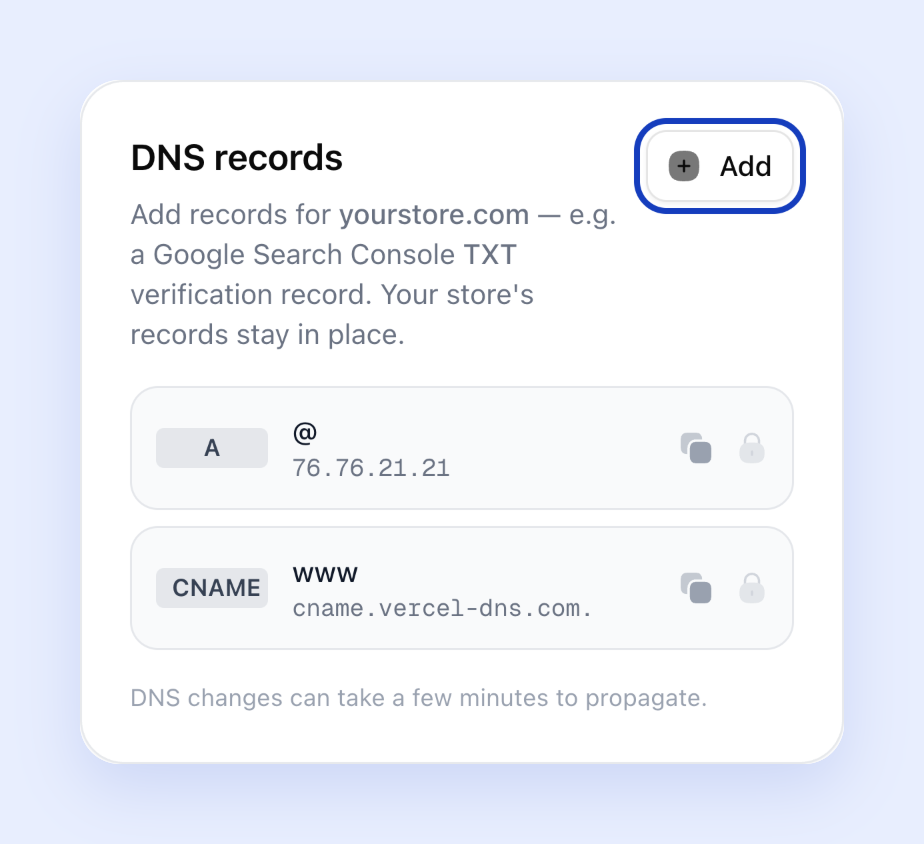
Now fill in the new record:
- Type: TXT (it's already selected)
- Host: @
- Value: paste the code you copied from Google
Then tap Save record.
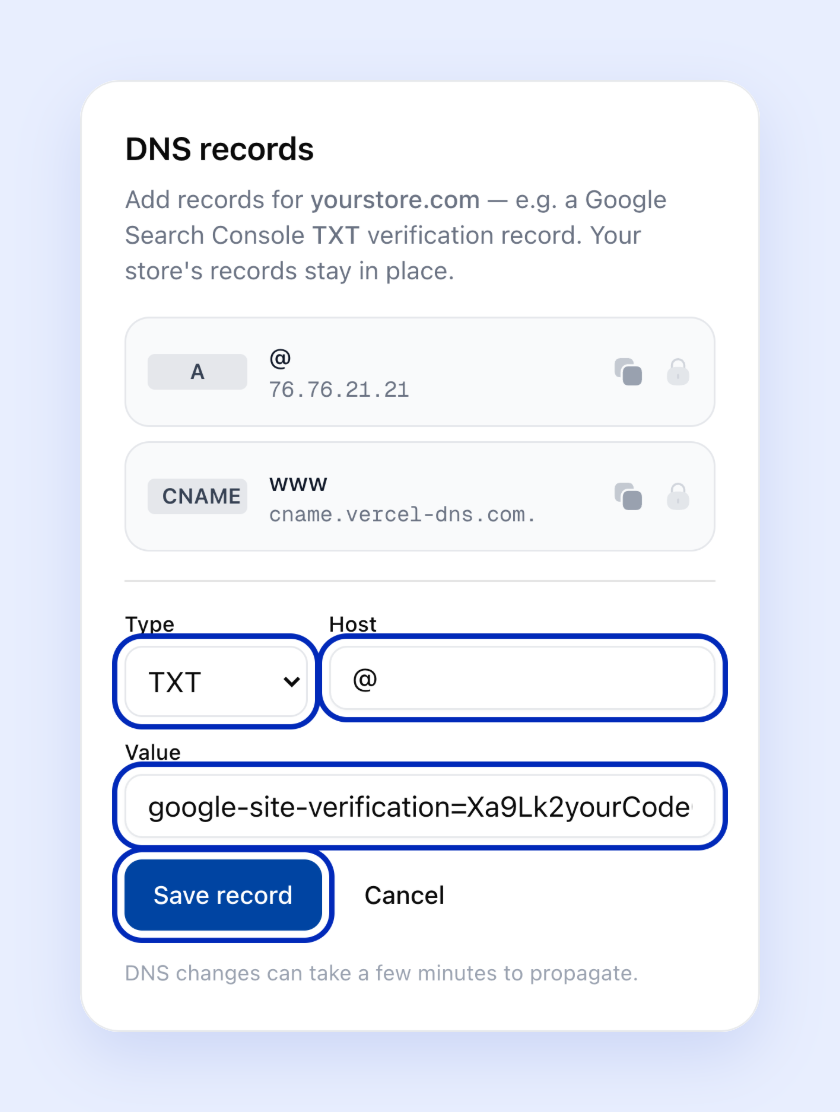
Don't worry about breaking your store. The two records that keep your store online have a lock next to them, so they can't be changed or deleted by accident. Adding a TXT record doesn't touch them.
Connected a domain you bought somewhere else? Then the record goes in your domain provider's settings instead, for example GoDaddy or Namecheap. Look for "DNS", "DNS records" or "Manage DNS", add a new TXT record with Host @, paste Google's code as the value and save.
Step 4: Go back to Google and tap Verify
Return to the Search Console page you left open and tap Verify.
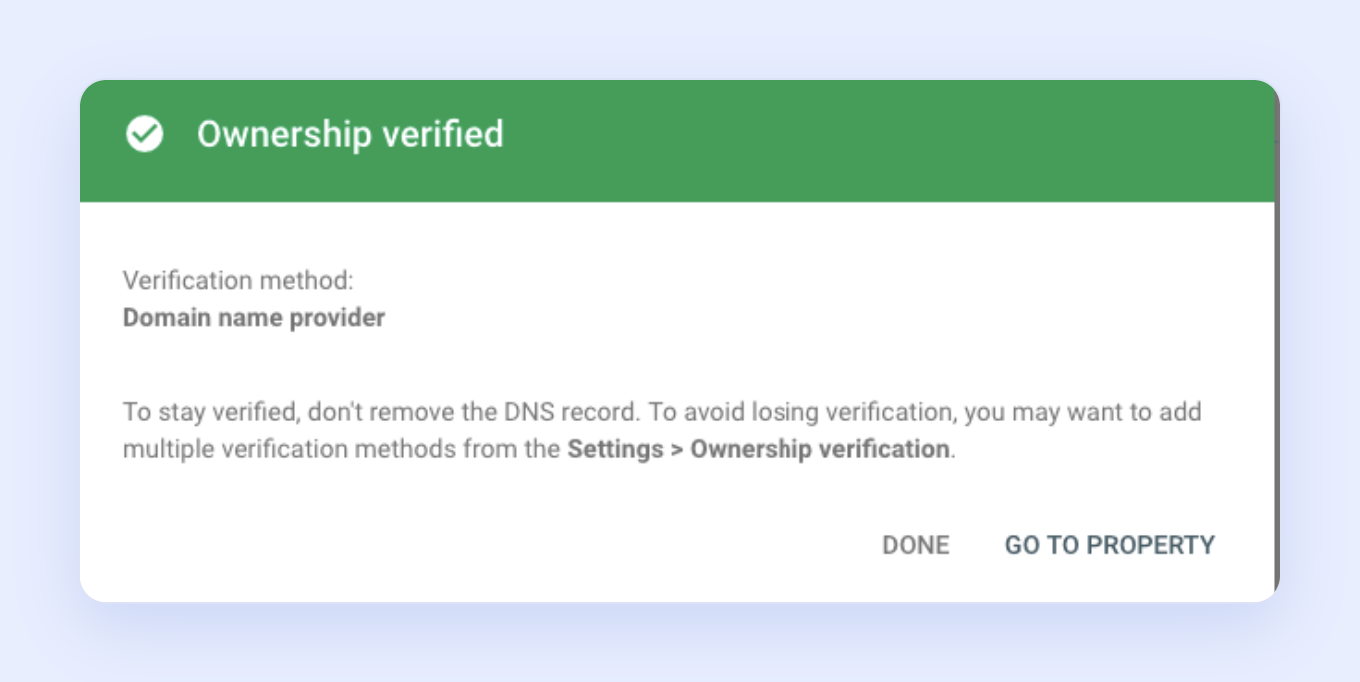
If everything is set up, you'll see Ownership verified.
Didn't work the first time? That's normal. A new record can take a few minutes to reach Google. Wait 10 to 15 minutes and tap Verify again. If it still fails, check that:
- The Host is @ (not www or your domain name)
- You pasted the whole code, including google-site-verification=
- There are no spaces at the start or end of the value
Step 5: Submit your sitemap
Your sitemap is a list of every page on your store: your home page, shop page, categories and all your products. Strawlo creates it for you and keeps it up to date whenever you add or change a product.
To give it to Google:
- In Search Console, open Sitemaps from the menu
- Under Add a new sitemap, type sitemap.xml
- Tap Submit
That's it. Google now knows about every product on your store, and checks the sitemap again on its own when things change.
What you'll see in Search Console
Data starts showing up within a few days. The two reports worth checking are:
- Performance. The searches people used to find your store, how many times you showed up and how many people clicked. This tells you which products people are looking for, so you know what to stock more of and what to post about.
- Pages. Which of your pages are on Google and which aren't yet. New stores take a little time to get fully added, so don't worry if not everything is there in the first week.
One important thing: keep the TXT record. Google checks it again from time to time. If you delete it, your store stops being verified and you lose access to the data.
Common questions
Does it cost anything? No. Google Search Console is free.
Will it make my store rank higher on Google? Not on its own. It shows you how Google sees your store, which helps you make better decisions. Clear product names, good descriptions and real photos are what help people find you.
Can someone on my team see it too? Yes. In Search Console, go to Settings → Users and permissions and add their Gmail.
I have more than one store. Do I do this for each one? Yes. Each domain is its own property in Search Console, so repeat these steps for each store's domain.
Need help? Our help article on Google Search Console covers the same steps in short, or message us on WhatsApp and we'll walk you through it.
Get weekly business tips
Join 1,000+ entrepreneurs growing their online businesses.
No spam, ever. Unsubscribe anytime.