
Verifying Your Domain with Google Search Console
Google Search Console shows how your store appears in Google Search: what people searched to find you, how many clicked, and which of your pages are on Google. It's free from Google.
To use it, you prove to Google that you own your domain by adding one TXT record. If you bought your domain through Strawlo, you add that record right in your dashboard.
For a longer walkthrough with screenshots of every step, see our blog post: How to add your store to Google Search Console.
Before You Begin
You'll need:
- Your own domain connected to your store, like yourstore.com. See Buying a domain directly in Strawlo or Connecting a custom domain to your store.
- A Google account.
Stores on a yourstore.strawlo.com address can't be verified in Search Console, because Google only lets you verify a domain you own. Google can still find your store, as every Strawlo store is listed in our sitemap.
Step 1: Start in Google Search Console
- Go to search.google.com/search-console and sign in.
- Tap Add property and choose Domain (not URL prefix).
- Type your domain without www or https, for example yourstore.com, and tap Continue.
- Google shows a TXT record starting with google-site-verification=. Tap Copy.
Leave this page open. Don't tap Verify yet.
Step 2: Add the TXT record in Strawlo
- Open your domain settings:
- Web: Store settings → Domain
- Strawlo app: Menu → Domain → Manage domain
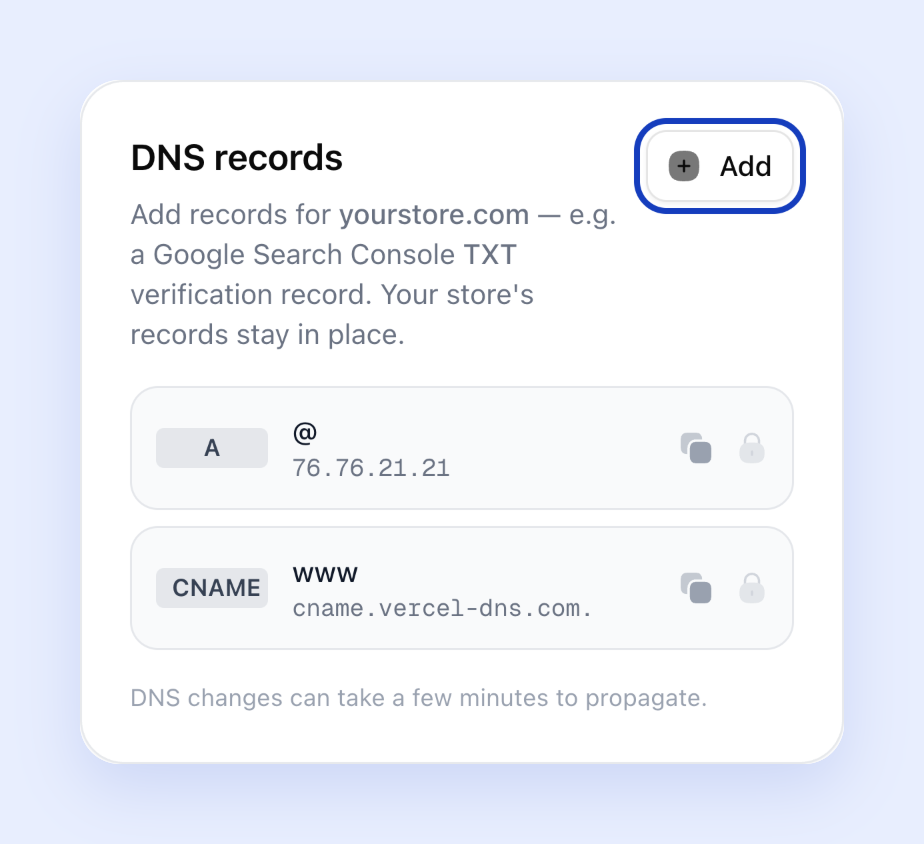
- Under DNS records, tap Add.
- Set Type to TXT (already selected) and Host to @.
- Paste Google's code into Value.
- Tap Save record.
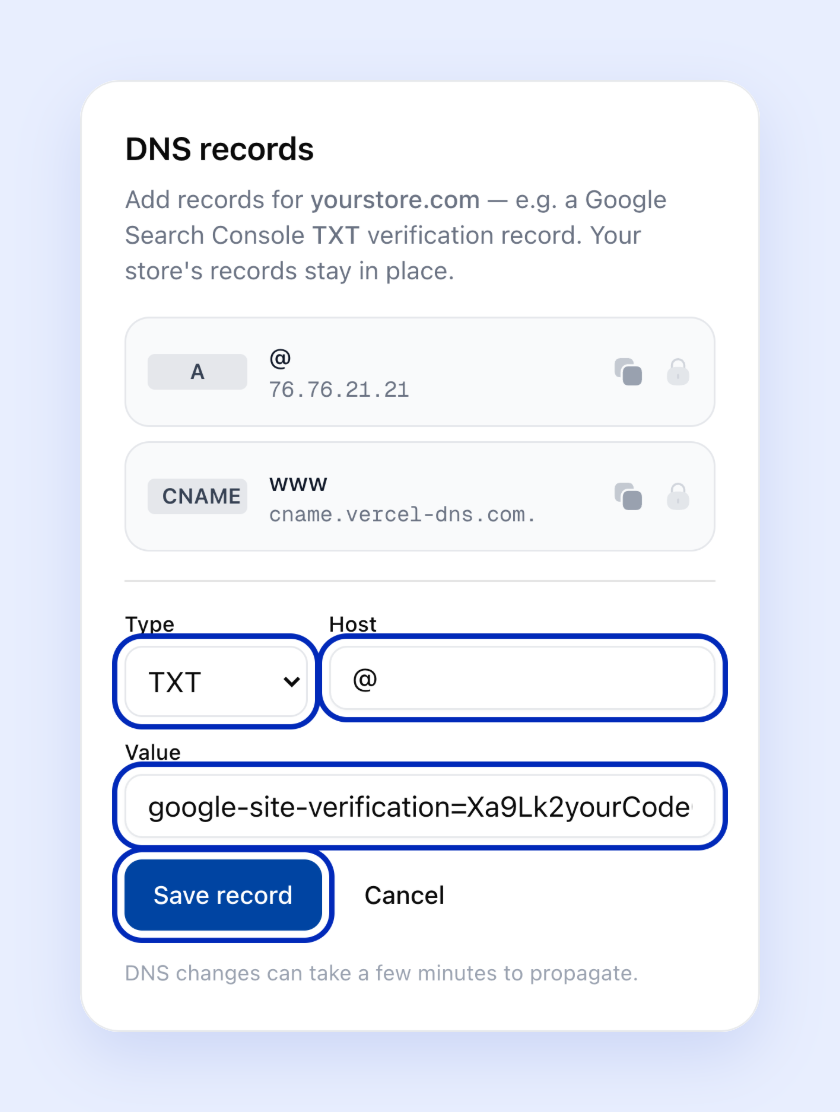
The records that keep your store online are locked, so adding a TXT record can't break your store.
In the Strawlo app, the Manage domain screen also has a Verify with Google Search Console guide with these steps.
Step 3: Verify in Google
Go back to the Search Console page and tap Verify. You'll see Ownership verified when it works.
Step 4: Submit your sitemap
- In Search Console, open Sitemaps.
- Type sitemap.xml and tap Submit.
Strawlo creates your sitemap automatically. It lists your home page, shop, categories and every product, and updates when you change your products.
Domain Bought Somewhere Else?
If you connected a domain you bought from another provider (GoDaddy, Namecheap and so on), the DNS records section won't appear in Strawlo. Add the TXT record in your domain provider's DNS settings instead:
- Type: TXT
- Host / Name: @ (some providers want it left blank)
- Value: the code from Google
Then go back to Search Console and tap Verify.
Troubleshooting
Verification failed. A new record can take a few minutes to reach Google. Wait 10 to 15 minutes and tap Verify again. Then check:
- Host is @, not www or your domain name.
- Value is the whole code, including google-site-verification=, with no spaces at the start or end.
- The record shows in your DNS records list in Strawlo.
"That record already exists". You've already added this exact record. Go back to Google and tap Verify.
I deleted the TXT record and now I'm not verified. Google checks the record from time to time. Add it again with the same code and verify again. Keep the record in place for as long as you use Search Console.
I don't see DNS records in my domain settings. DNS records only appear for domains bought through Strawlo. For other domains, add the record at your domain provider (see above).
Need Help?
- WhatsApp support: Chat with us on WhatsApp
- Email us: support@strawlo.com