You know that part of migrating your store where you have to re-add every single product by hand? The titles, descriptions, images, variants, stock counts — all of it?
Yeah, we got rid of that.
Strawlo now imports directly from Shopify. Just connect your store, pick the products you want, and we pull everything in — prices converted, images sorted, and a clean way to handle anything that needs a little extra attention.
Why We Built This
Every week, we hear from merchants who want to migrate from Shopify to Strawlo — lower plans, mobile money, pay-on-delivery, WhatsApp checkout, custom domains. Strawlo makes total sense for them. But the hassle of migrating? That kept stopping people.
Not anymore.
And even if you're not fully migrating, this is super handy. Maybe you want Strawlo as a second storefront for local customers, a cheaper checkout option, or a separate shop for a sub-brand — all powered by the catalogue you've already built on Shopify.
Here's How It Works
Step 1 — Connect Your Shopify Store
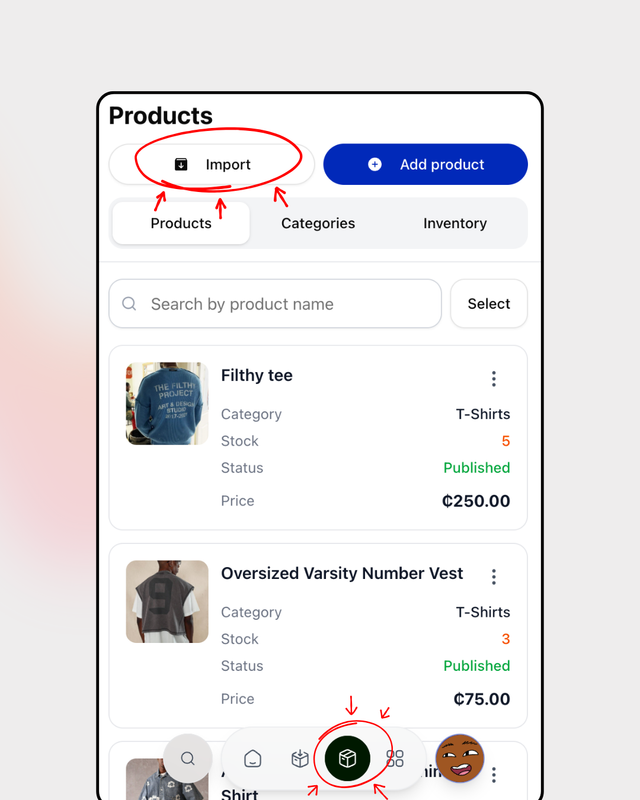
Head to Products → Import products → Shopify on your Strawlo dashboard and tap Connect on web. We'll open Shopify's official login flow, you approve Strawlo's access, and that's it.
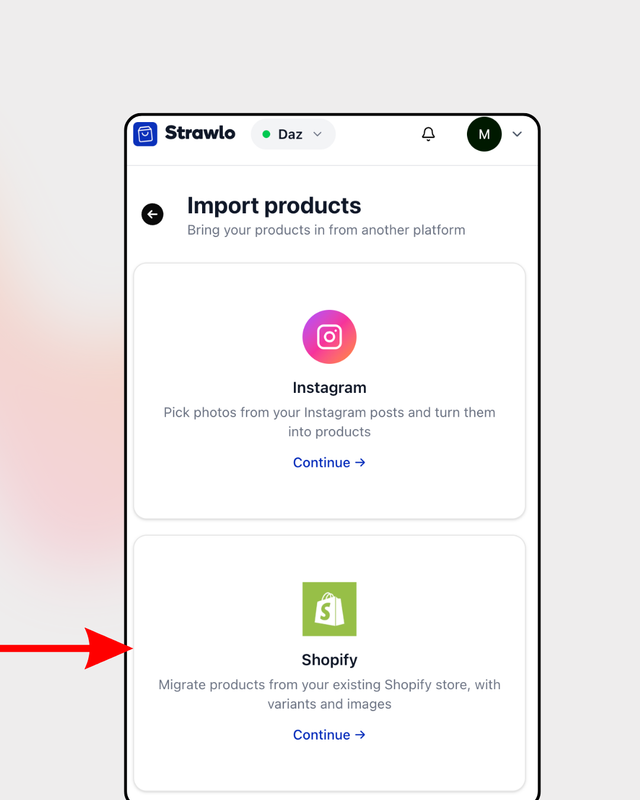
Quick note: Strawlo only asks for read access — we're just pulling your product info over. We can't touch anything on your Shopify side. Your store keeps running exactly as it always has.
Step 2 — Pick What You Want to Import
Once you're connected, your whole Shopify catalogue shows up in a clean grid — product image, title, price, and a little badge if it has variants. Products you've already brought over are tagged so you won't accidentally import them twice.
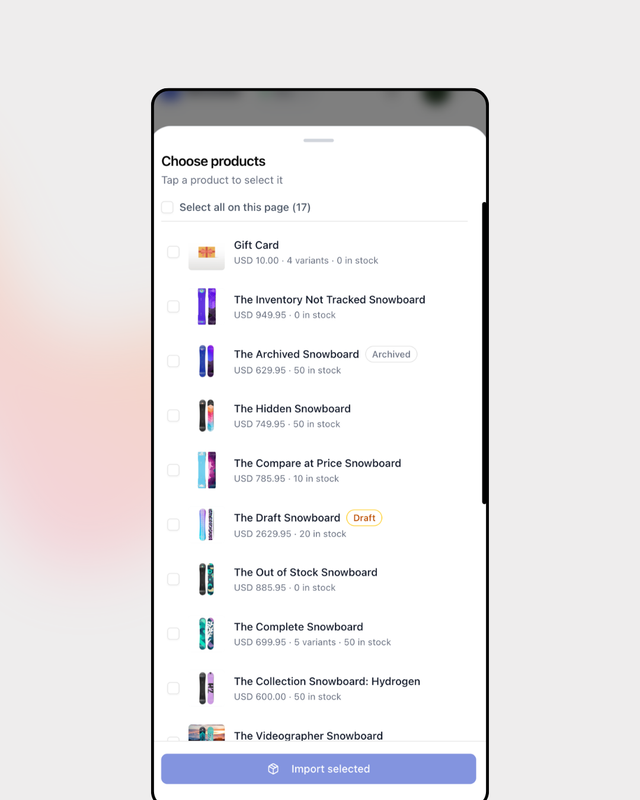
Tap to select. A numbered badge appears (just like picking photos on your phone). When you're ready, a floating Import button slides up from the bottom.
Step 3 — Currency Conversion, Handled
This is the part that usually causes headaches for cross-region sellers. Your Shopify store is in USD but your Strawlo store is in GHS (or NGN, KES, ZAR) — so what happens to the prices?
We've got you. When you tap Import and the currencies don't match, a quick screen pops up:
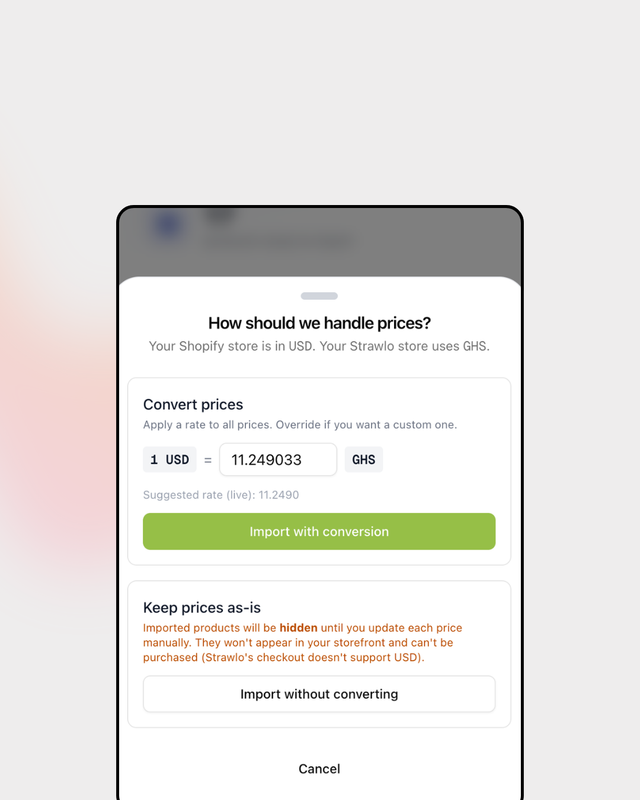
Your Shopify is in USD; your Strawlo store is in GHS. Set a rate and we'll sort the prices out for you. 1 USD = [12.50] GHS (live rate: 12.4830)
We pre-fill it with a live exchange rate so you can usually just glance and confirm. But if your actual supplier rate is different, go ahead and change it.
Then pick your path:
Convert & import — We apply your rate to every price (variants and "compare at" prices too) and publish the products straight to your store.
Keep original prices, save as drafts — We bring the products over but keep them hidden from your storefront. You can go in, set your own prices, and publish them when you're ready.
Both options exist for a reason. The convert path is great when you have a solid rate to work with. The draft path is for when you want to price each product yourself.
What Actually Gets Brought Over
Here's everything Strawlo imports from Shopify:
- Product title and URL handle
- Description (cleaned up, no messy HTML)
- Featured image + all extra images (up to your plan's limit)
- Variants — names, prices, SKUs, individual stock counts
- Total inventory
- Compare-at price (so your sale badges still show)
- Whether the product was published or a draft on Shopify
A Few Things Worth Knowing
Products you already imported won't get duplicated. If you run the import again after updating something on Shopify, Strawlo recognises the product and updates it instead of creating a copy. Really useful if Shopify is your master catalogue.
The currency guard. If you used the "keep original prices" path, your products will be drafts. If you try to publish one while it still has the wrong currency, Strawlo will catch it and walk you straight to the editor. No accidentally putting USD-priced products live on your GHS store.
Disconnect whenever. If you stop using Shopify, just tap the log-out icon next to your shop name. We delete the connection. Your already-imported products stay on Strawlo — they're yours now.
Who Can Use It
Shopify import is available on Business+ plans. It runs against Shopify's API and uses our currency conversion service, so it lives in the tier built for merchants with established catalogues.
On Business+, you get unlimited imports and up to 8 images per product (we'll let you know if any extras get trimmed during import).
If you're on the Business plan, you'll see the Shopify option greyed out — tap it and we'll show you the upgrade path.
Where to Find It
On web: Products dashboard → Import products → Shopify
On iOS: Products tab → Import products → Shopify
Both work exactly the same way under the hood.
Strawlo Business+ merchants can use Shopify import right now. Open your dashboard, go to Import products, and tap Shopify to get started.
Get weekly business tips
Join 1,000+ entrepreneurs growing their online businesses.
No spam, ever. Unsubscribe anytime.
Related articles

Adding Products Just Got Faster: Snap a Photo, Let AI Fill It In, Done

WhatsApp Broadcast: Message Every Customer You've Ever Sold To