
Understanding Your Dashboard
Your Strawlo dashboard is your command center where you can see everything happening with your store at a glance. Think of it as the homepage of your online business.
When you log in, you'll see a friendly greeting with your name and your store's web address (like yourstore.strawlo.com). You can click on your store link anytime to see what your customers see.
Getting Started Checklist
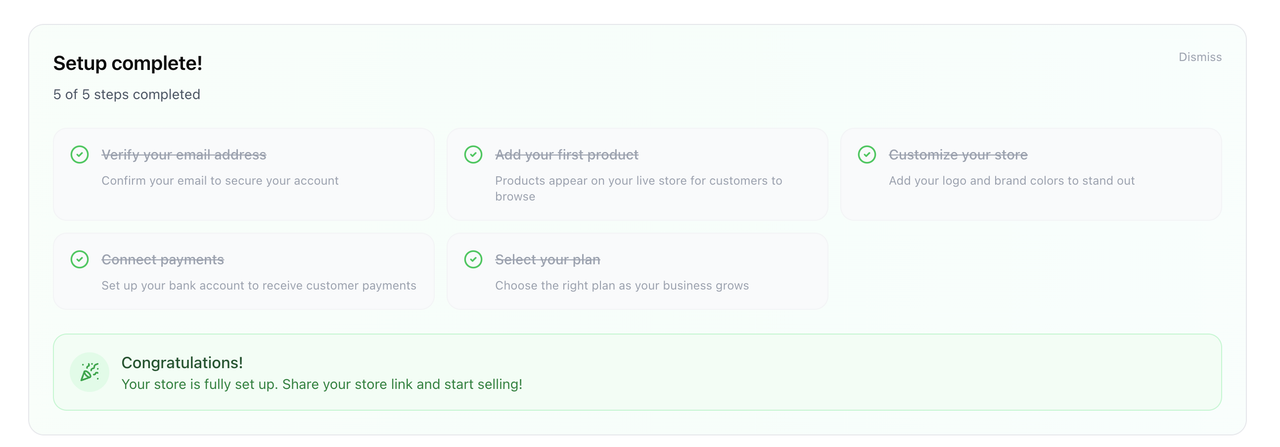
If you're new to Strawlo, you'll see a Getting Started card at the top of your dashboard. This is your step-by-step guide to setting up your store.
The checklist includes 5 simple steps:
- Verify your email address - Confirm your email to secure your account
- Add your first product - List something for sale in your store
- Customize your store - Make your store look unique with your brand colors and logo
- Connect payments - Set up how you'll receive money from customers
- Select your plan - Choose a subscription plan that fits your needs
You'll see a progress bar showing how many steps you've completed (for example, "3 of 5 steps completed"). Each step has a button that takes you directly to where you need to go.
Fun fact: When you complete all 5 steps, you'll see a celebration with confetti!
Once you've been using Strawlo for a while and completed the setup, this card will disappear to give you more space.
Sales & Traffic Card
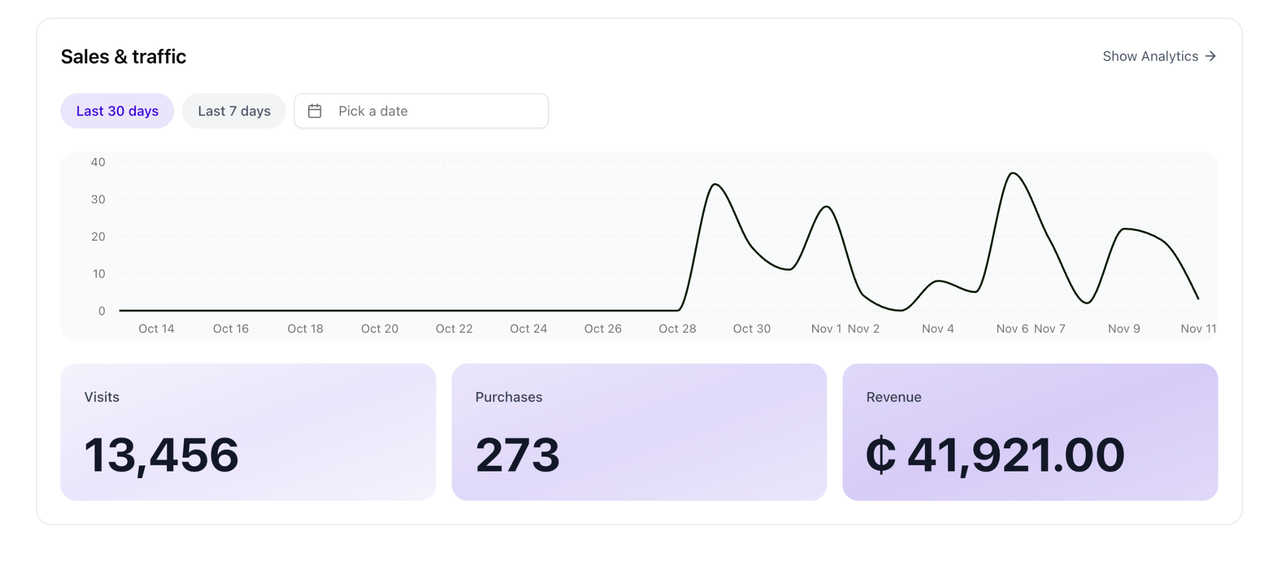
This is where you see how your store is performing. The card shows you three important numbers:
- Visits - How many people came to look at your store
- Purchases - How many people actually bought something
- Revenue - How much money you've made
You'll also see a chart that shows these numbers over time, so you can spot trends (like if sales go up on weekends).
Changing the Time Period
You can look at your data for different time periods:
- Last 30 days - See the past month (this is the default view)
- Last 7 days - See just the past week
- Custom dates - Pick any start and end date you want
Just click the dropdown to switch between these options.
Want to see more detailed numbers? Click the "Show Analytics" link to go to your full analytics page.
Store Information Card
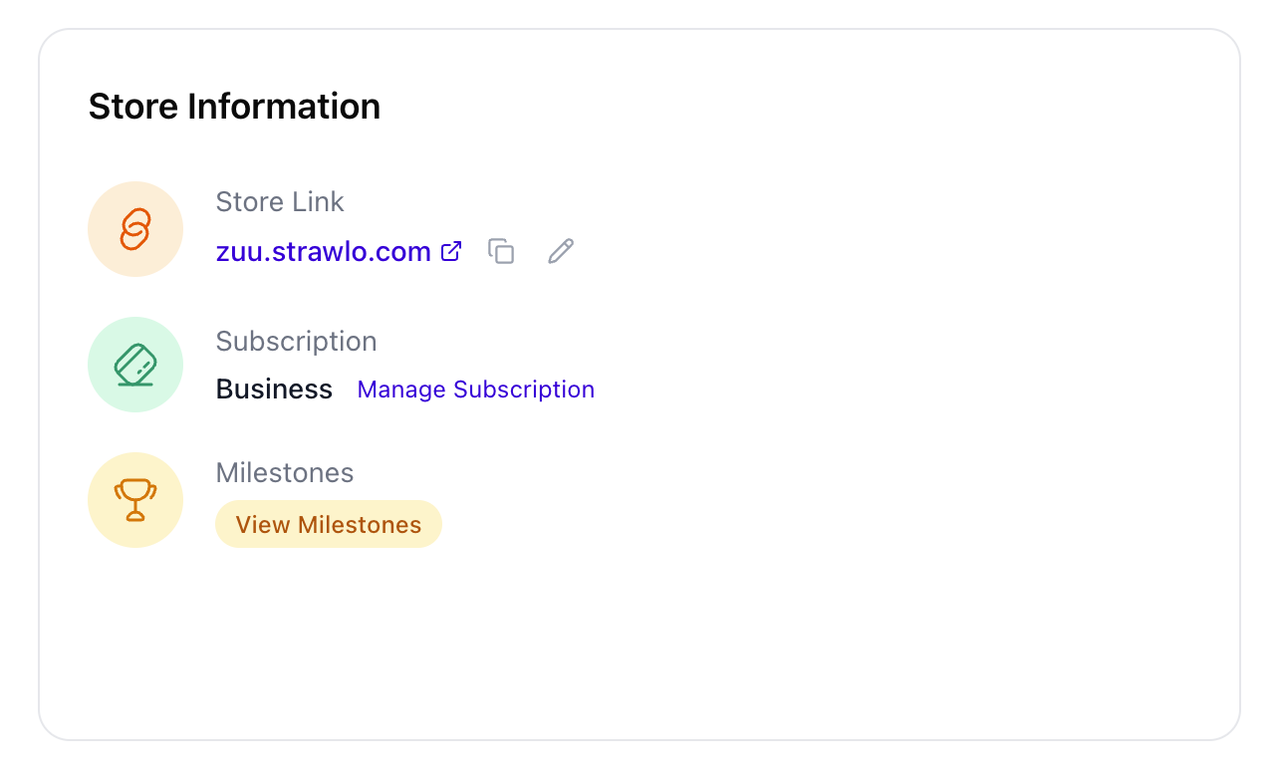
This card shows important details about your store and gives you quick access to common tasks.
Your Store Link
Your store has a unique web address that looks like yourstore.strawlo.com. In this section you can:
- Copy your link - Click the copy button to share your store address with customers (great for social media!)
- Edit your store name - Click the edit button to change your store's web address. The system will check if your new name is available before you save it.
Your Subscription
This shows which Strawlo plan you're on. If you haven't chosen a plan yet, you'll see an "Upgrade" button. If you're already subscribed, you'll see a "Manage Subscription" link to change or cancel your plan.
Milestones
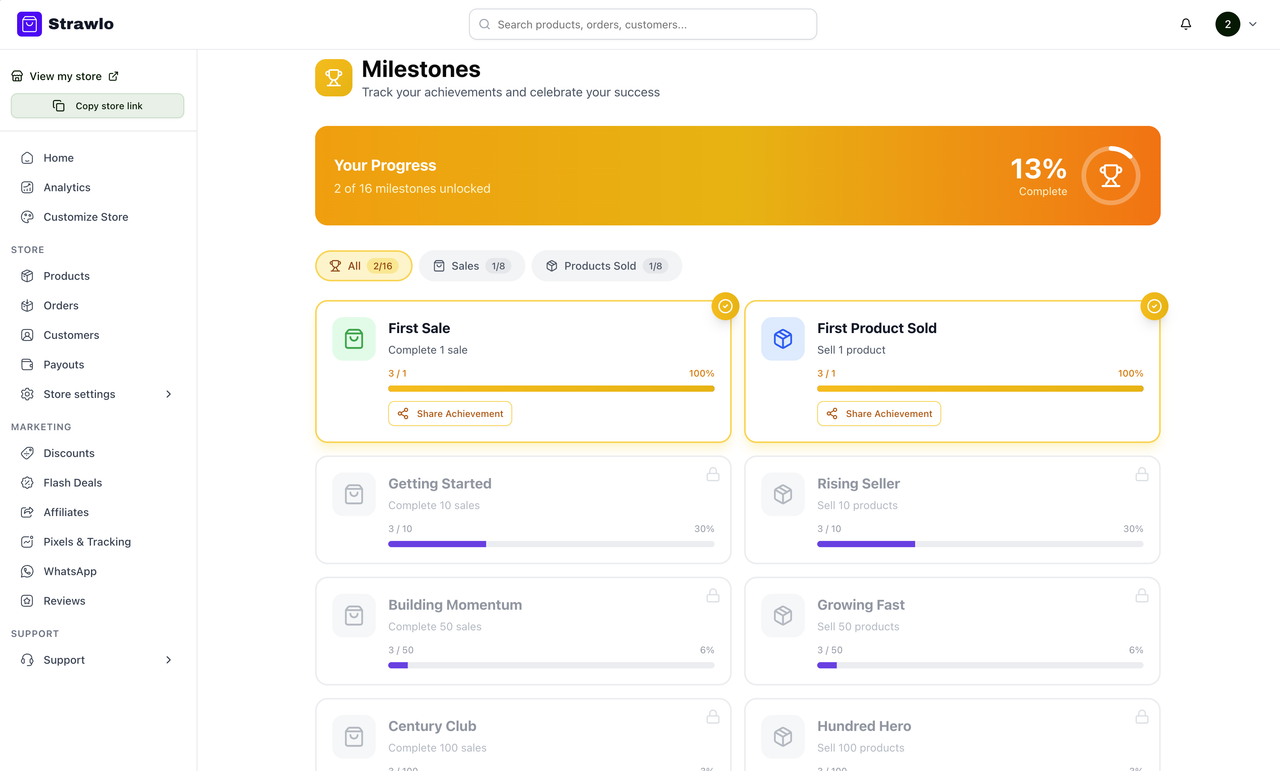
Click "View Milestones" to see your business achievements. This is where Strawlo celebrates your progress, like when you make your first sale or reach 100 orders!
News & Announcements Card
Stay up to date with what's new at Strawlo! This card shows:
- New features we've added
- Tips to help you sell more
- Important updates about the platform
- Special promotions or opportunities
Quick Actions
At the top of your dashboard, you'll find an "Add new product" button.
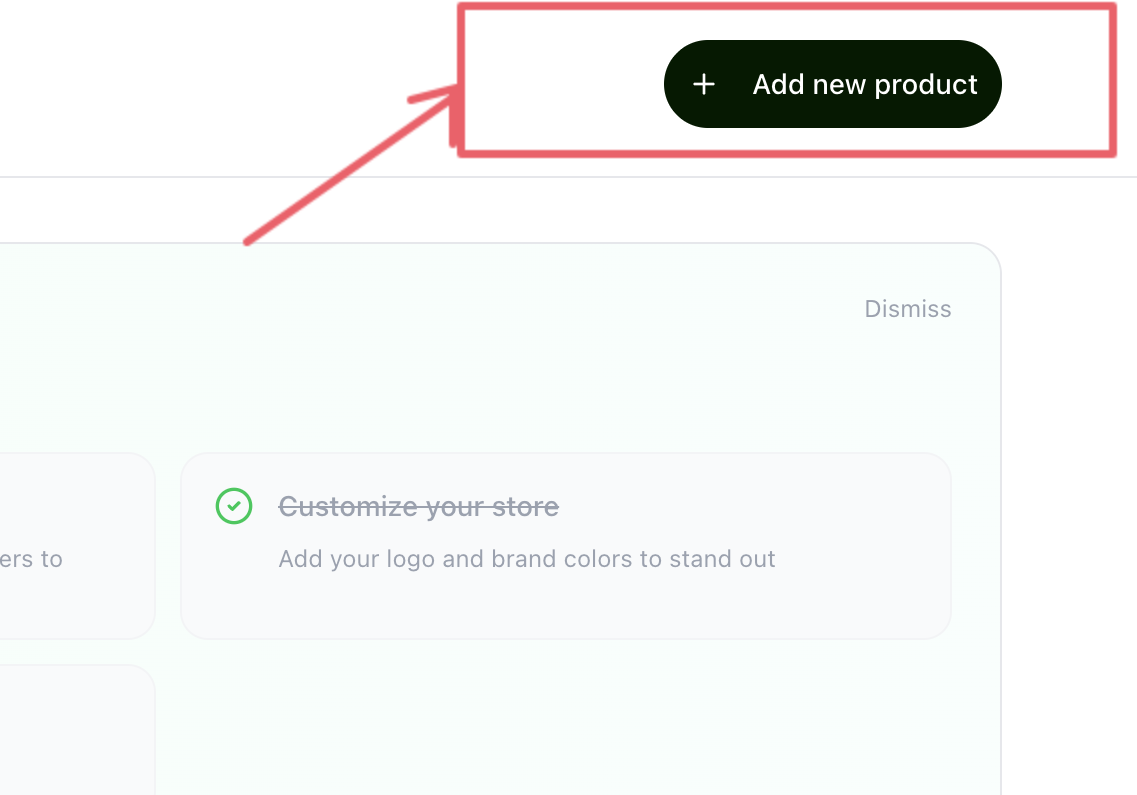
This is the fastest way to list something new for sale without having to navigate through menus.
Navigation: Finding Your Way Around
Sidebar Menu (On Computer)
On the left side of your screen, you'll see a menu with all the sections of your dashboard:
The menu is grouped into three sections.
Main:
- Home - Your dashboard, this page
- Analytics - Detailed stats about your store's performance
- Customize Store - Change how your store looks
Store:
- Products - Add, edit, or remove items you're selling (with Categories and Inventory tabs inside)
- Orders - See what customers have bought and track deliveries
- Customers - View your customer list and their purchase history
- Visitors & Tracking - See who's browsing your store, and connect Facebook Pixel, Google Analytics and other ad pixels
- Payouts - See how much money you've earned and when you'll get paid
- Payment Links - Create a link to charge someone directly, without them browsing your store
- Store settings - Expands to:
- Payments - Set up how customers pay you (mobile money, cards, etc.)
- Shipping/Delivery - Set delivery zones and rates
- Domain - Connect a custom web address (like www.yourstore.com)
Marketing:
- Promotions - Discount codes, flash deals and special offers, all in one place
- Stories - Post short updates that appear on your storefront
- WhatsApp - Connect WhatsApp and broadcast to past customers
- Reviews - Manage customer reviews on your products
At the bottom of the sidebar you'll also see your current plan, with a link to Billing to upgrade or manage your subscription.
Quick Links
At the top of the sidebar, you'll find:
- View my store - Opens your store in a new tab so you can see it like a customer
- Copy store link - Copies your store address to share with others
Using Strawlo on Your Phone
When you're on a mobile device, the layout is a bit different to fit your smaller screen.
Bottom Navigation Bar
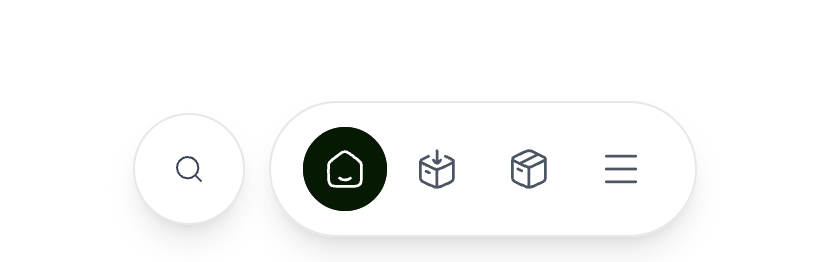
At the bottom of your screen you'll see a floating pill with your most-used pages:
- Home - Go back to your dashboard
- Orders - Check your orders
- Products - Manage your products
- Menu - Opens everything else, including Search
Beside the pill is a round Eko button — tap it to ask Strawlo's AI assistant anything about your store. See Using Eko, your AI assistant.
This makes it easy to navigate with your thumb while holding your phone.
Notifications
Look for the bell icon at the top of your screen. This shows you important updates like:
- New orders that need your attention
- Low stock warnings
- System announcements
A number on the bell tells you how many unread notifications you have.
Product Tour (For New Users)
If you're new to Strawlo, you might see a guided tour pop up. This tour walks you through the main features of your dashboard:
- It highlights different parts of the screen
- Shows you what each section does
- Lets you go through at your own pace with Next/Previous buttons
- You can skip it anytime if you prefer to explore on your own
The tour only shows once, so you won't be bothered by it after you've completed or skipped it.
Top Navigation Bar
At the very top of your screen, you'll find:
- Search - Quickly find products, orders, or customers
- Notifications - See alerts and updates (the bell icon)
- Your Profile - Access account settings and sign out
Tips for Using Your Dashboard
Check your dashboard daily - A quick look each morning helps you stay on top of orders and see how sales are going.
Use the time filters - Compare "Last 7 days" to "Last 30 days" to see if your business is growing.
Complete the setup checklist - Stores with all 5 steps completed tend to make more sales because customers trust them more.
Keep your store link handy - Use the copy button often to share your store on social media, WhatsApp, or anywhere else.
Need Help?
If anything on your dashboard confuses you or doesn't work as expected:
Email us - support@strawlo.com
Join our community - Connect with other sellers in our whatsapp group
Watch tutorials - Check out our YouTube channel for video guides
We're here to help you succeed!